Everything Hominis does, shown with the real thing
Click any window, panel or tile to see it larger.
Keep things apart
Switch projects without closing a tab
A workspace is one canvas: its tiles, where they sit and how big they are. Your thesis gets one, the launch at work another, the trip a third. Switch between them from the workspace switcher in the top left, with a preview of each before you go.
- After a restart, every tile is back in its place, at its size
- Share a workspace as a single file. Sign-ins never travel with it
Separate logins without separate browsers
An identity is its own set of cookies. Give your university workspaces one identity and your work workspaces another, and each stays signed in to its own accounts. Any number of workspaces can share one.
- Changing a workspace’s identity is a deliberate two-step: pick, then apply
- Hominis tells you what will happen before it happens
A private session that forgets everything
Open one private session whenever you need it. Its tiles live in memory only and nothing about them is written to disk. The window stays violet the whole time, so you always know where you are, and ending the session tells you exactly what gets discarded.
Know what’s going on
Who’s watching, in plain words
The trust panel opens from the site’s icon on a tile’s header. It shows whether the connection is secure, how many trackers were blocked, and which permissions you have set for the site. Change them right there.
Find the tab that’s playing, and pause it
A tile that plays sound shows a small badge on its chip in the dock, the row of favicons along the bottom of the canvas. Hover the chip to pause, skip, mute or change the volume, or click the title to fly to the tile.
- Nothing starts playing again on its own after a reload or a restart
- Mute from the keyboard with ⌃ M
History you can actually read
A calendar shows the busy days, a timeline groups visits by day, and journeys stitch related pages together. See how long you stayed on a page and how you got there. It all stays on your Mac.
Think on the canvas
Frame what belongs together, filter by what it’s about
Drop tiles into a group frame and they move together. Hominis suggests a name and a few tags from what’s inside: press Enter to keep them, or type your own. Tags draw coloured threads between related tiles, and picking one filters the canvas.
Write and draw right next to your sources
Pick up the pencil and draw straight on the canvas. Note tiles hold headings, to-dos, quotes and callouts, and links in them open as tiles alongside.
- Pen, highlighter, shapes, arrows, text, sticky notes and tables
- Ink stays where you put it and never gets in the way of the tiles
Your web: every tile on one map, and the lines between them
Past the last zoom step, your canvas turns into a map. Lines show which page you opened from which, which ones share a tag, and which come from the same site. Search your tiles, bookmarks and history from the same place.
The command bar: addresses, searches, commands and questions
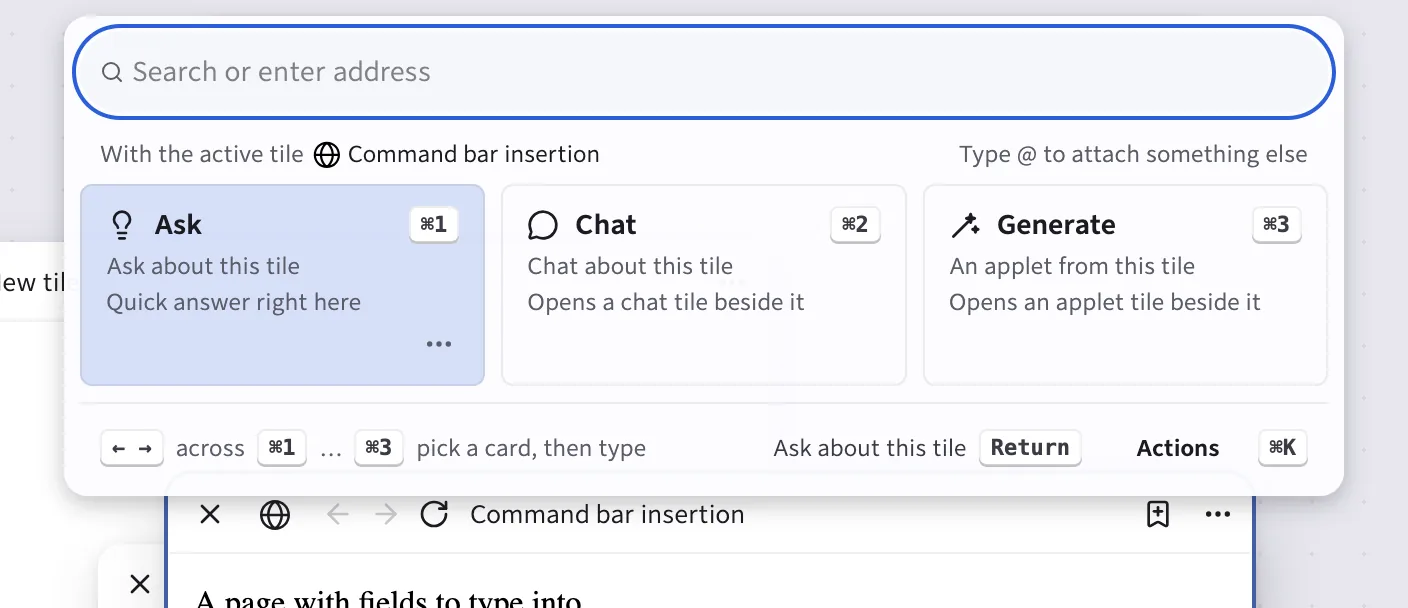
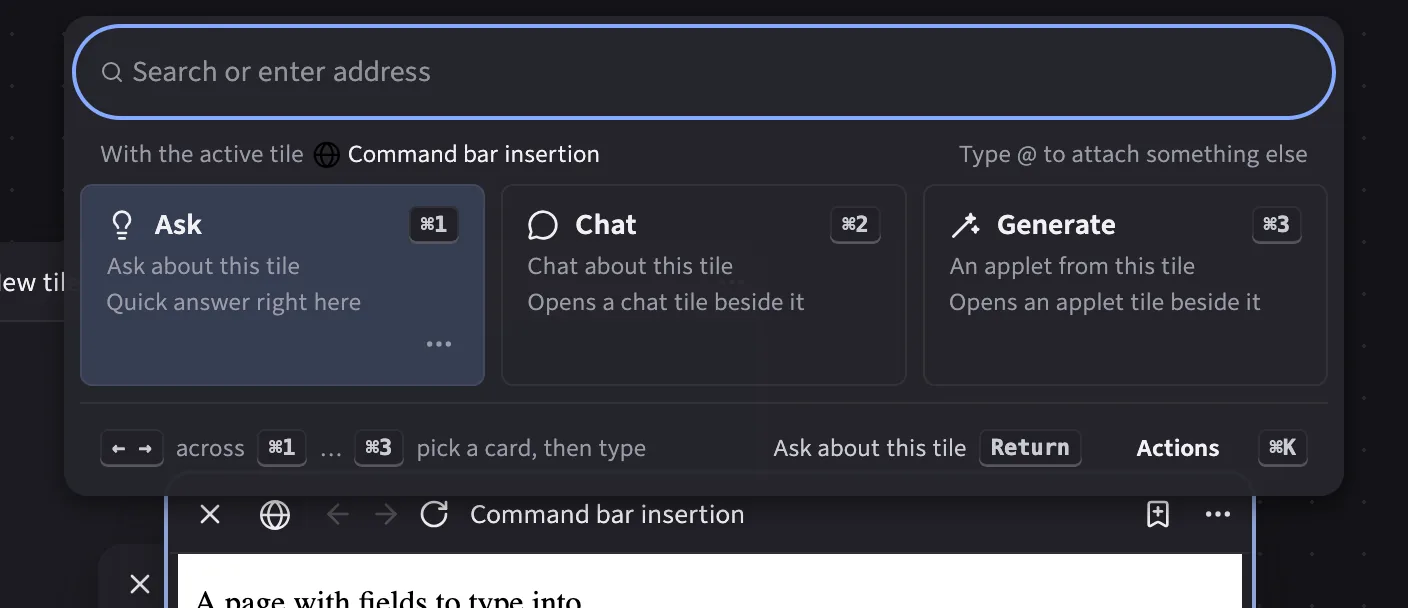
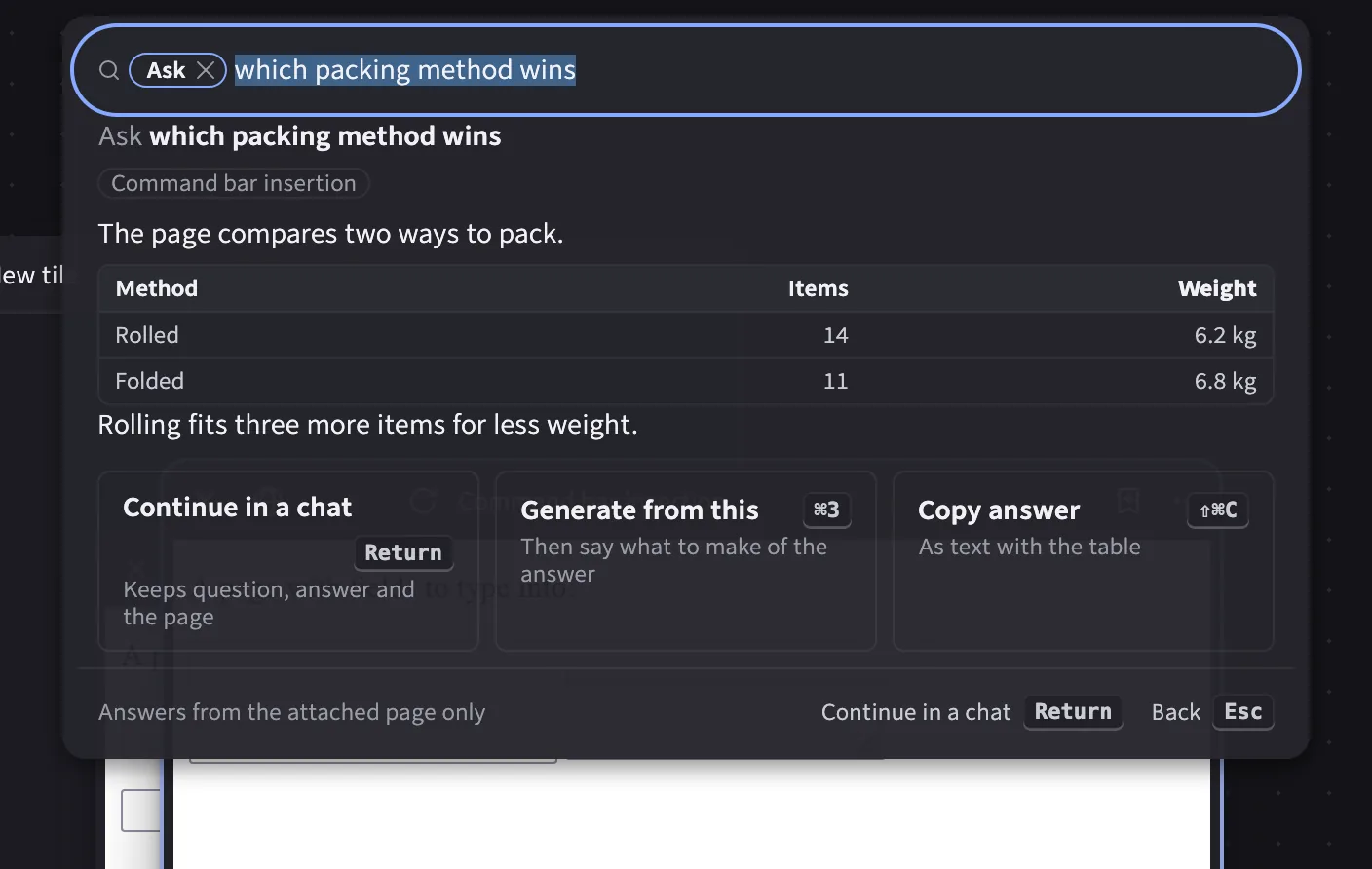
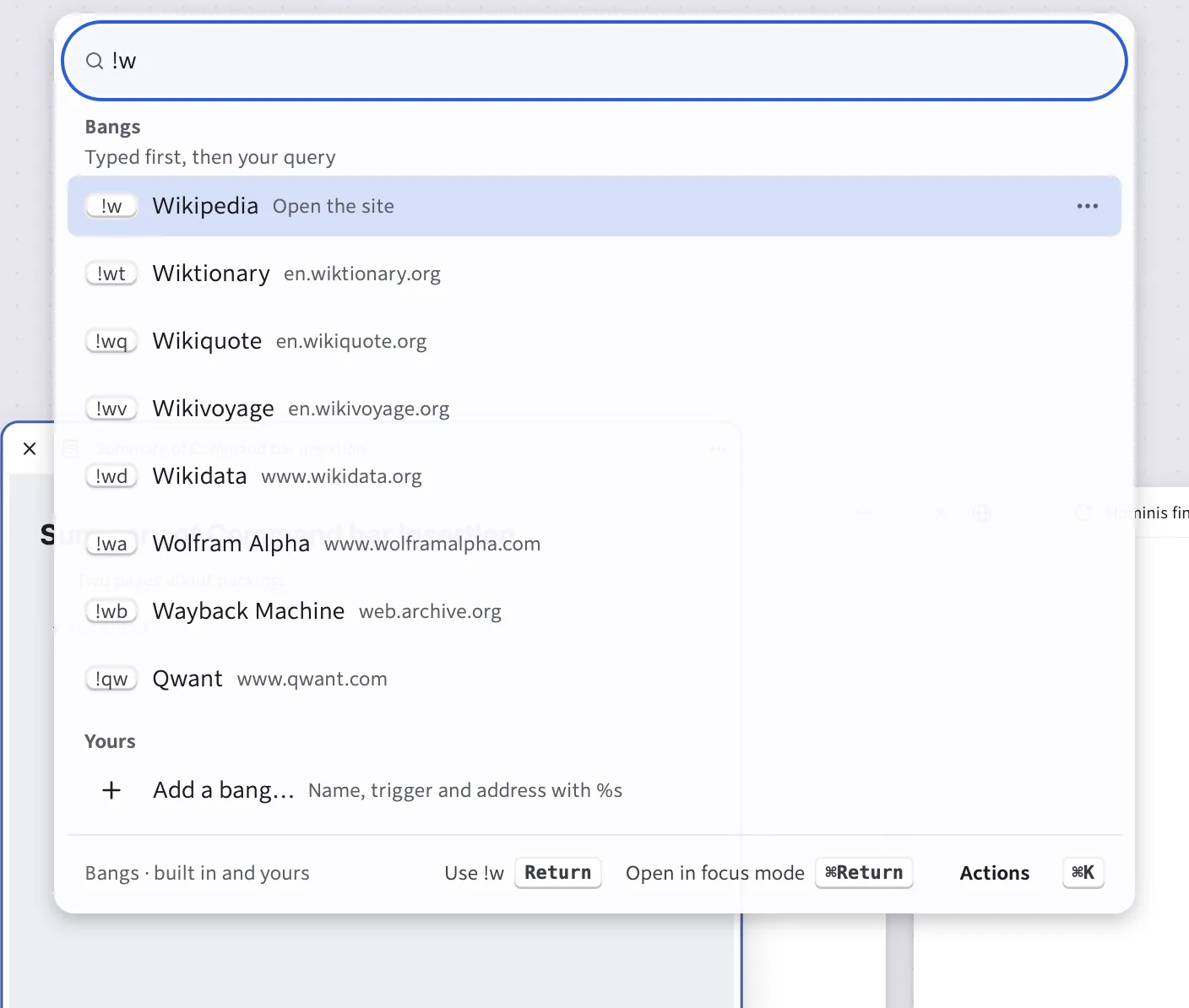
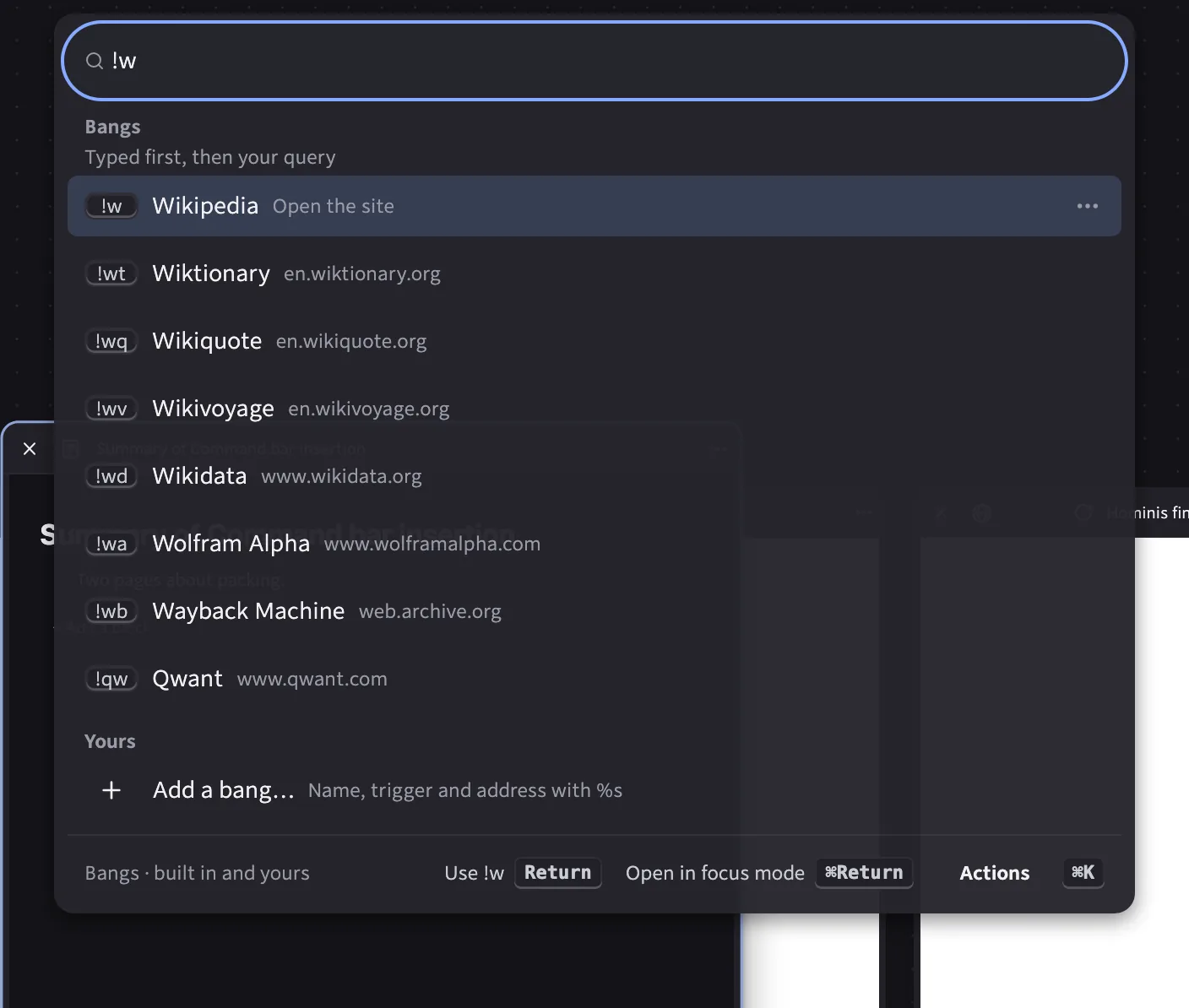
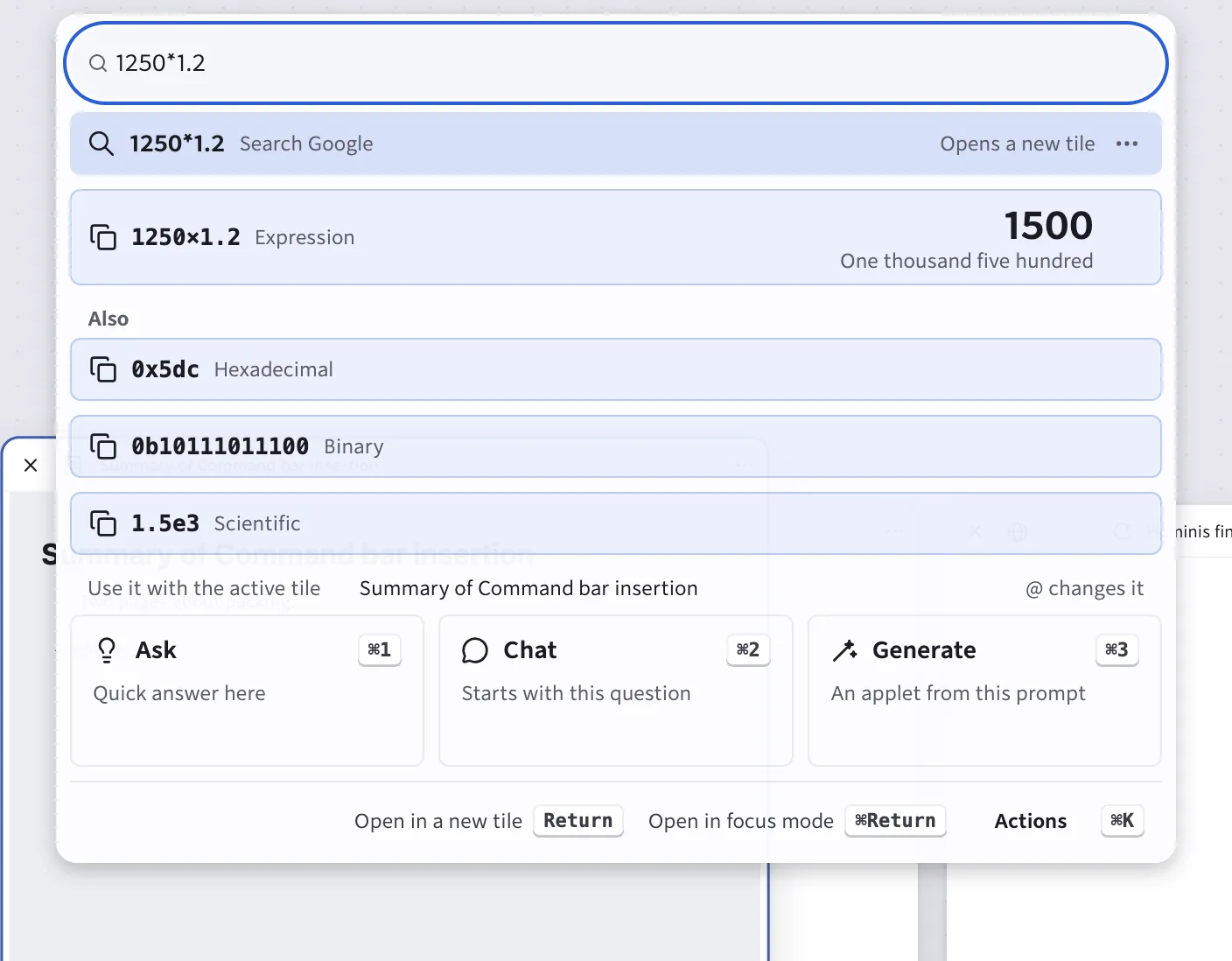
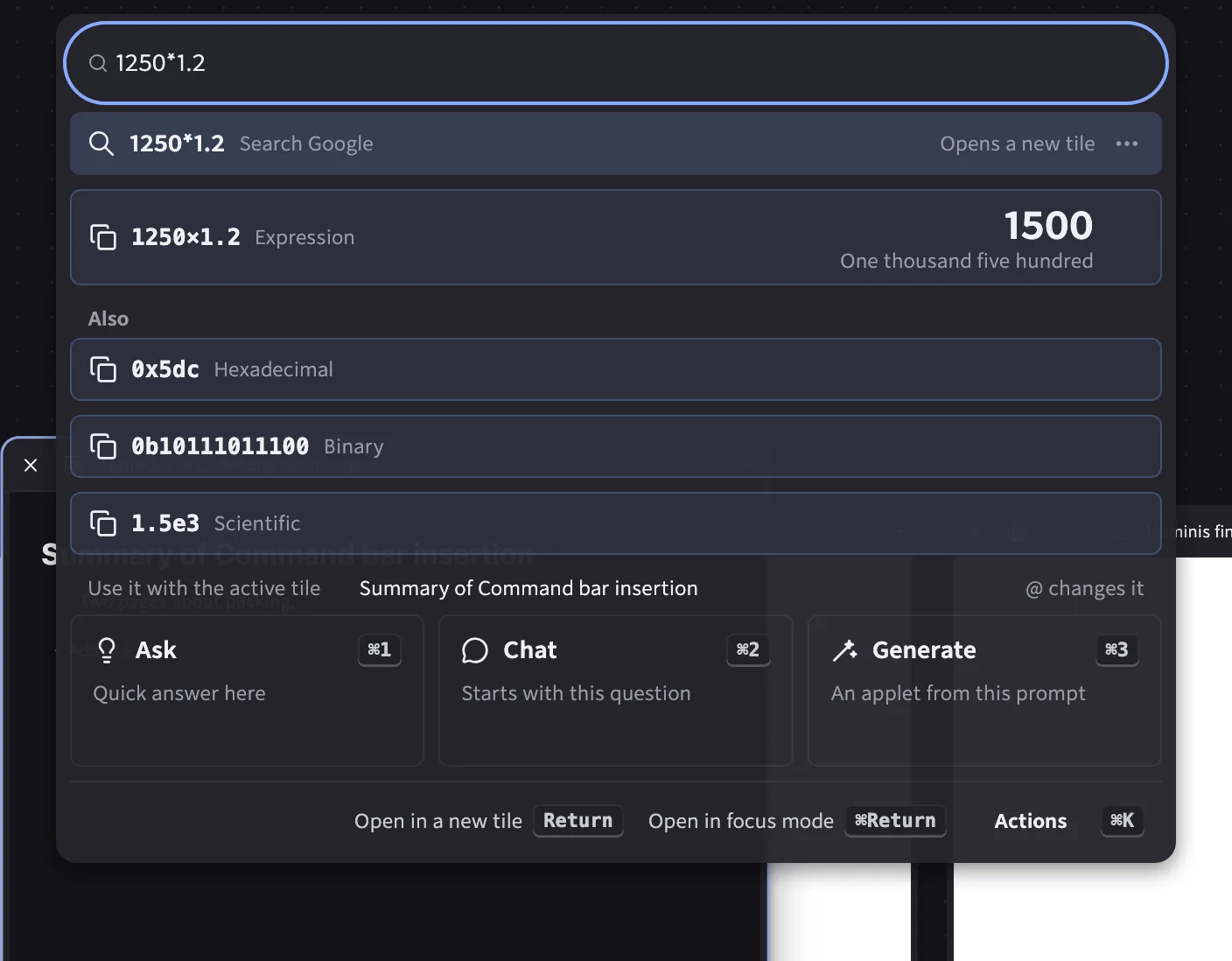
Press ⌘ K in any layout, No distractions included. Type an address, a search or a command and the results come first. Under them, Ask, Chat and Generate wait for whatever you typed.
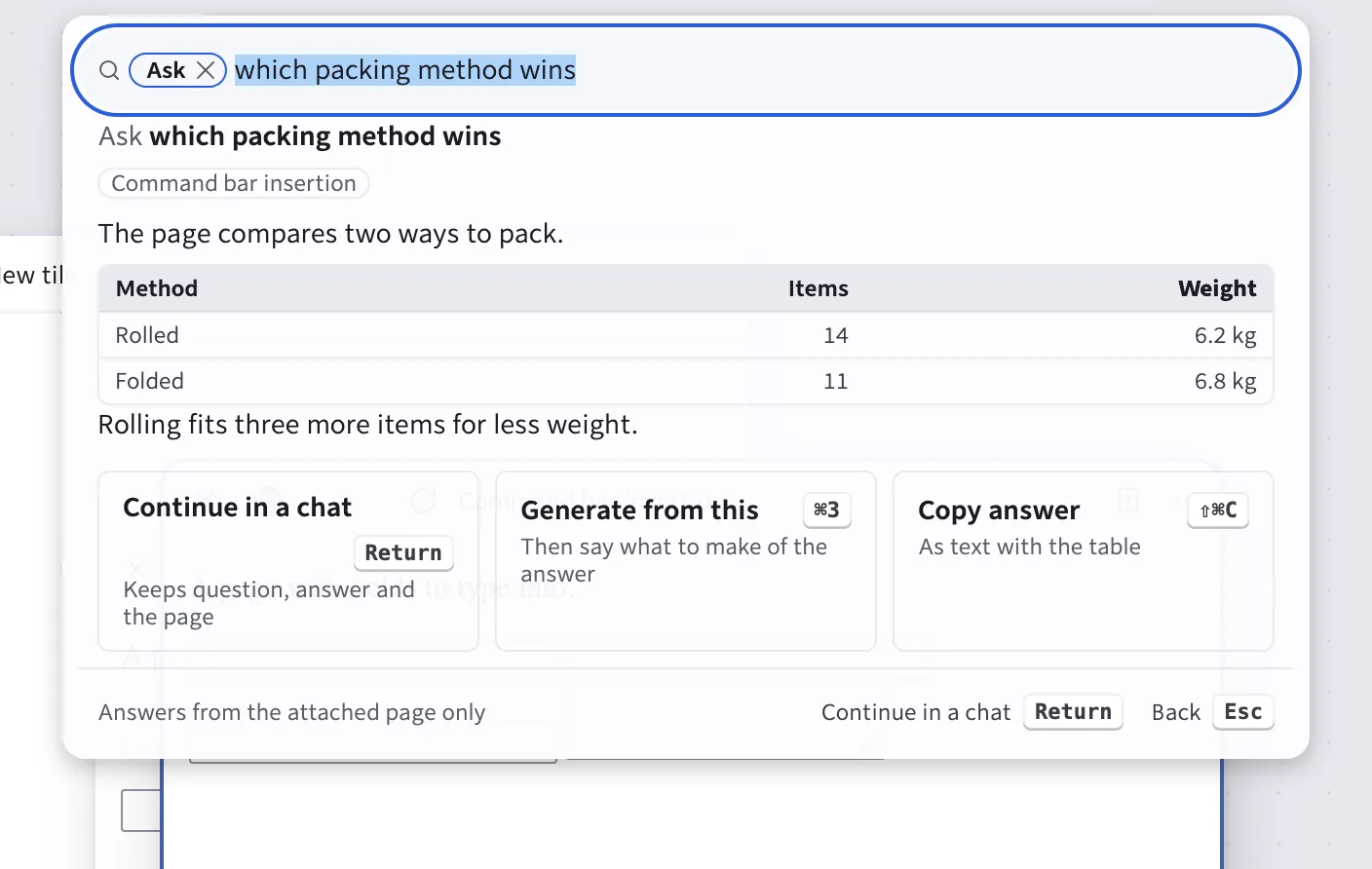
Choose Ask, Chat or Generate with ⌘ 1 to ⌘ 3 or the arrow keys, and type. They work on the tile you’re looking at, on tiles you’ve selected, or on anything you attach with @.
- Shift-click tiles to gather them, then tag, group, arrange, summarise or close them all from the bar.
- ⌘ K on a highlighted result lists everything you can do with it, such as opening it in a focus layout or copying its link.
- ⌘ ; opens emoji and symbols, found by their standard names, and puts them where you were typing.
- In a private session, search suggestions stay off and the bar sends nothing to a model.
AI, on your terms
Hominis can use a language model for a few specific jobs, with your own key. It never runs in a private session.
Ask across several tiles, and check every claim
Select a few tiles and ask one question across all of them. The answer numbers each claim, and each number takes you to the passage in its tile, so checking takes one click.
Any answer can be pinned to the canvas as a note, next to the pages it came from.
Off until you add your own key. Settings → Assistance has one switch for all of it and one for each feature, and says what each feature sends, to whom and when. Nothing is sent in the background. Generated tools and conversations can be deleted there at any time.
Settings that say what they’ll do
Every section has a preview that restates your choices in plain words and shows them on a small copy of your canvas. This is the real Settings window: try it.
Change the theme, the material or the accent and watch the preview follow. In the Tabs & focus section, switch orientation and its layouts redraw.
Everything you expect from a browser is here on day one
Hominis is built on Firefox, and the everyday parts got the same care as the canvas.
Give your tabs some room
- Free
- No telemetry
- Firefox 153 ESR, with your extensions
- Apple silicon now, Windows and Linux soon
- System requirements